Latest Version

Released .
See what’s new...


Pricing:

Just $ on iTunes
or the App Store


Features:

  • Quickly sends email and SMS text messages using stationery

  • Personalizes messages using smart mailmerge substitutions and signatures

  • Favorites, Recents, Groups lists to quickly choose an email address or phone number

  • Customizable Templates- make your own message stationery

  • Templates include Subject and Body fields

  • Customizable Snippets- coin your own phrase shortcuts

  • Send quick replies to incoming email

  • Use Maildash to create multiple email signatures

  • Sends native SMS messages via the iPhone Messages app

  • Also sends SMS using email, so works on iPod Touch

  • Customizable database of email-to-SMS gateways

FOR iPHONE & iPOD TOUCH


Sends personalized emails using stationery

Previous Page Next Page

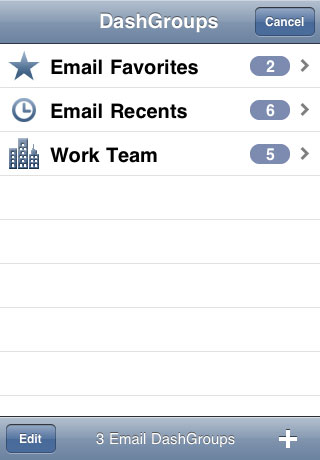
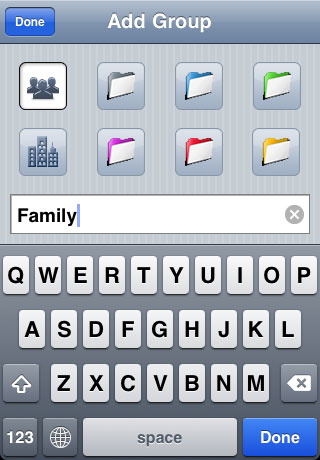
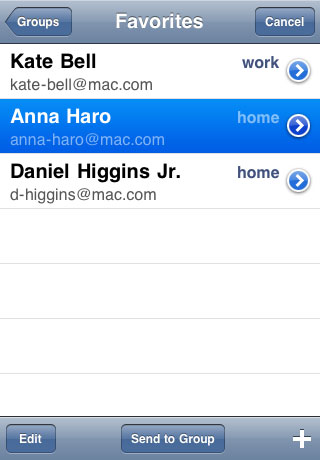
Quickly choose an email address, email group, or phone number using Maildash’s email address Favorites feature—which works much like the iPhone’s phone number Favorites.


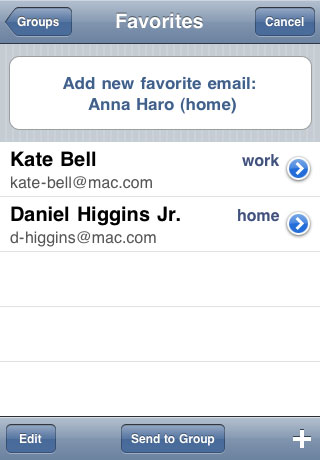
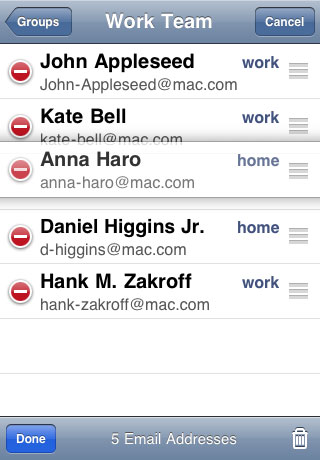
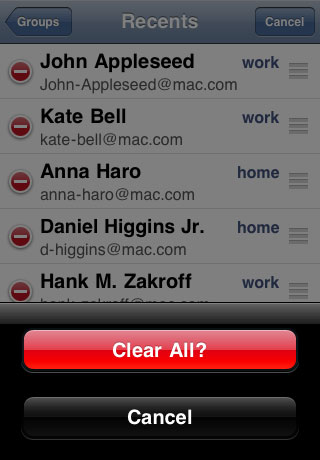
Maildash keeps track of contact Favorites/Recents/Groups Adding a new Group to Maildash Send emails to a person or an entire group Adding a contact to the Favorites list Arrange Favorites in whatever order you like Delete all or a particular Recent item
Maildash keeps track of contact Favorites/Recents/Groups

Previous Slide
Pause Slideshow
Next Slide
To choose a favorite:
  • Tap the round, blue star button (from the main screen).

  • Select a a favorite from the list.


To add a new favorite:
  • Tap the round, blue plus button to display all your contacts.

  • Select a contact, and choose their email address or phone number.

  • Tap the round, blue star button, then tap the “Add New Favorite” button.


To manage favorites:
  • Tap the Edit button.

  • To rearrange the list, tap a favorite’s right edge and drag it up/down.

  • To delete a favorite, tap the round, red minus sign button.


Recent History: Each time Maildash sends/replies, it remembers the recipient. To send a new message to a Recent recipient, tap the blue star button, then the “Recents” button.

Change History: To erase all Recent recipients from Favorites, tap the “Edit” button, then the “Clear” button.

Send to anyone: address a Maildash to someone not in your Address Book by typing (how quaint!) the address once your Maildash appears in the Mail app.

Profile Our Story
Support Contact Us
Movie★Slate +
KeyClips
Visit Movie-Slate.com
Maildash
Overview Support
BigTipper
Overview Support
Services
Profile
Support